 FloServer
Backup and restore
Right-click a project for Back up as zip… and Restore from backup…
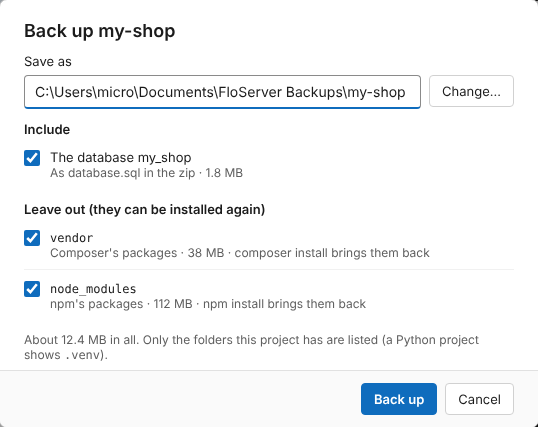
Back up a project
A backup is one .zip with the project’s files and, if you tick it, its database as database.sql. It goes to Documents\FloServer Backups unless you choose another place.
Folders that can be installed again, such as vendor (Composer) and node_modules (npm), are left out by default. Only the folders the project has are listed; a Python project shows .venv.
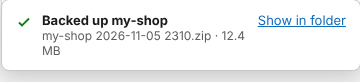
When it’s done, a message shows the file and its size, with Show in folder.
From the terminal: flo backup <project>, with --to <zip> or --no-database.
Restore a project
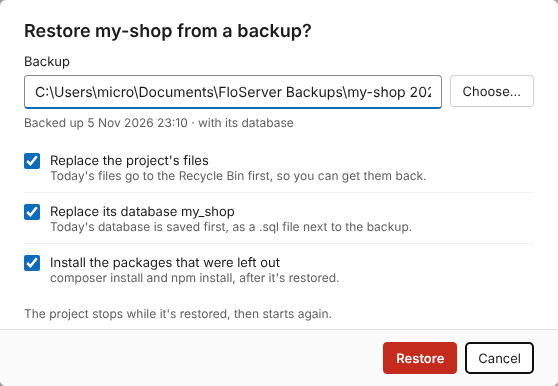
Pick the backup zip. You choose what to replace:
- Replace the project’s files: today’s files go to the Recycle Bin first, so you can get them back.
- Replace its database: today’s database is saved first, as a .sql file next to the backup.
- Install the packages that were left out: composer install and npm install, after it’s restored.
The project stops while it’s restored, then starts again.
From the terminal: flo restore <project> <zip>.
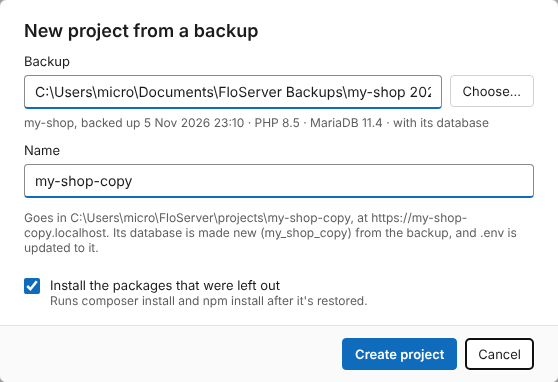
A new project from a backup
To keep the original and make a copy, use + New project → From a backup… (or flo add --from-backup <zip>). Give it a name; it gets its own folder, address and a new database made from the backup, and its .env is updated to it.